You typed ## Heading but it renders as plain text. A table row is missing a pipe character. Your Mermaid flowchart shows a syntax error instead of a diagram. These mistakes are invisible in raw Markdown — until someone opens the rendered version.
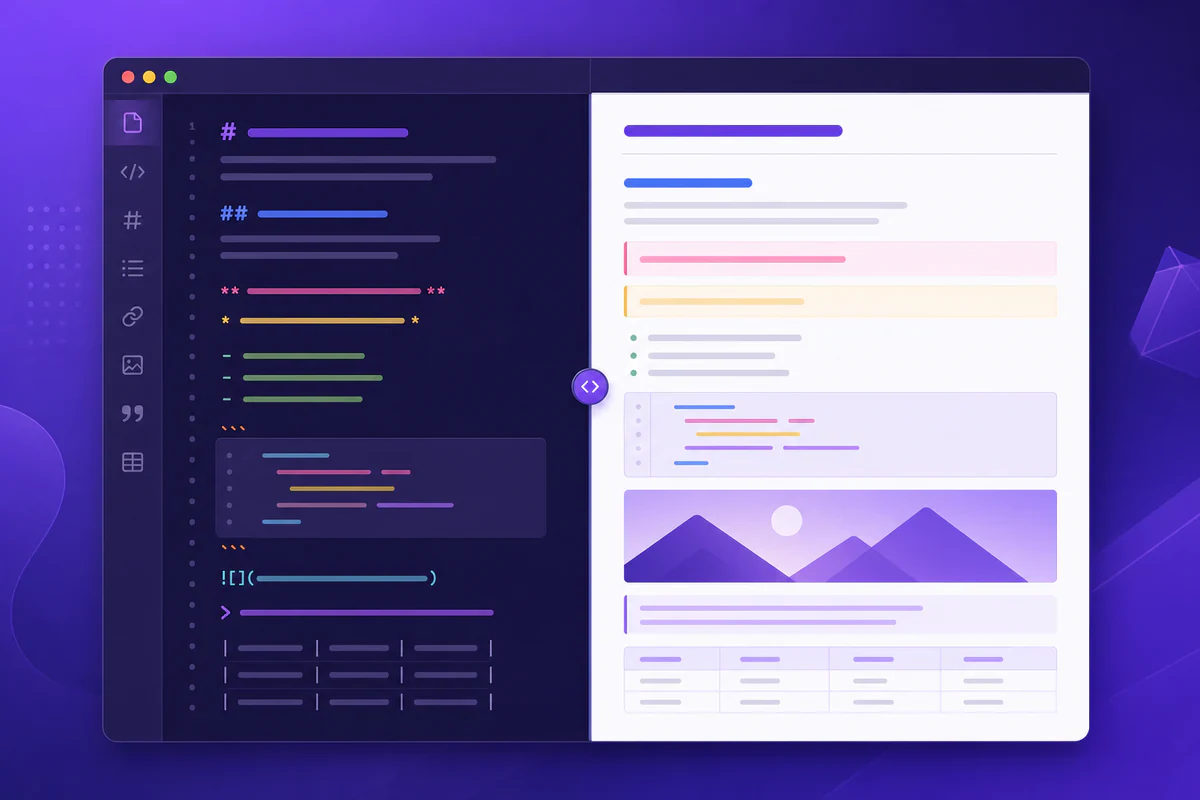
Markdown live preview solves this by showing your formatted output in real time as you type. What you see is what you get, without switching apps or running build commands.
This guide covers how live preview works, why developers rely on it, and how to use PDFWritter's Markdown live preview tool for error-free writing and exporting.
Quick Answer
Markdown live preview displays a real-time rendered view of your Markdown alongside the source text, updating instantly as you edit. PDFWritter's live preview tool runs in your browser with no installation and supports tables, code blocks, and Mermaid diagrams.
What is Markdown Live Preview?
Live preview is a split-pane editing experience. You write Markdown syntax on one side. The other side renders it into formatted output — headings, bold text, lists, tables, code blocks, and diagrams.
Unlike static preview (which requires a manual refresh), real-time markdown preview updates on every keystroke. This immediate feedback loop catches formatting errors before they reach your audience.
Most professional Markdown editors — VS Code, Typora, Obsidian — include preview modes. PDFWritter brings the same capability to your browser without installing anything.
The Markdown live preview tool at PDFWritter is purpose-built for quick edits, documentation review, and pre-export validation.
Why Do People Use Markdown Live Preview?
Writing raw Markdown without visual feedback is like coding without syntax highlighting. You can do it, but you will miss errors.
- Catch formatting errors instantly — broken headings, missing list markers, and unclosed code fences show up immediately
- Validate tables visually — column alignment issues are obvious in rendered view, invisible in source
- Preview Mermaid diagrams — flowcharts and sequence diagrams render live instead of showing raw code blocks
- Review before export — verify layout before converting to PDF or HTML
- Learn Markdown syntax — beginners see how syntax maps to output in real time
- Collaborate faster — share a preview link or screenshot instead of explaining raw syntax
- Work on any device — browser-based preview works on laptops, tablets, and phones
- Skip build steps — no need to run Hugo, Jekyll, or Next.js just to see rendered output
For anyone who writes Markdown regularly, live preview is not optional — it is essential.
Key Features of a Good Live Preview Tool
| Feature | Why It Matters |
|---|---|
| Real-time updates | Errors appear on the keystroke that causes them, not after a manual refresh |
| Split-pane layout | Source and preview visible simultaneously — no tab switching |
| GitHub Flavored Markdown | Tables, task lists, strikethrough, and autolinks render correctly |
| Code syntax highlighting | Fenced code blocks display with language-appropriate colors |
| Mermaid diagram rendering | Flowcharts, sequence diagrams, and Gantt charts render inline |
| Mobile responsive | Preview works on phones and tablets for on-the-go review |
| Client-side processing | Content stays on your device — no server upload |
| Export integration | Jump from preview to PDF, HTML, or TXT export seamlessly |
| No sign-up required | Open the tool and start previewing immediately |
PDFWritter's live preview includes every feature on this list.
Step-by-Step Guide: Using Markdown Live Preview
Step 1: Open the Live Preview Tool
Navigate to PDFWritter's Markdown live preview. The page loads a split-pane editor instantly — no account, no download.
You can also access preview from the free converter hub or the online editor.
Step 2: Paste or Write Your Markdown
Drop a .md file into the editor pane, or start typing from scratch. The preview pane updates with every change.
Try basic syntax first if you are learning:
# Project Overview

## Features

- Real-time preview
- PDF export
- Mermaid diagrams

```mermaid
graph LR
  A[Write MD] --> B[Preview]
  B --> C[Export PDF]
### Step 3: Verify Formatting and Diagrams

Scroll through the preview to check:

* Headings render at the correct levels
* Lists nest properly without breaking
* Tables align in columns
* Code blocks show syntax highlighting
* Mermaid diagrams render instead of showing raw code

For diagram syntax help, read our [Mermaid diagrams guide](/blog/render-mermaid-diagrams-markdown).

### Step 4: Fix Errors in the Source Pane

When preview shows unexpected output, locate the corresponding line in the source pane. Common fixes:

* Add a blank line before headings and lists
* Close unclosed code fences with triple backticks
* Fix table pipe characters and header separator rows
* Correct Mermaid arrow syntax (`-->` not `->`)

### Step 5: Export When Ready

Once preview looks correct, export to your target format:

* [Markdown to PDF](/markdown-to-pdf) for professional documents
* [Markdown to HTML](/markdown-to-html) for web publishing
* [Markdown to TXT](/markdown-to-txt) for plain-text output

Or continue editing in the full [online Markdown editor](/editor) for additional features.

---

## Best Use Cases

### Developers

Preview README changes before pushing to GitHub. Validate API documentation formatting before exporting to PDF for code review. Test Mermaid architecture diagrams inline.

### Technical Writers

Review long-form documentation chapters visually before client delivery. Catch table formatting issues that spell-checkers miss.

### Students

Learn Markdown syntax by watching the preview update as you type. Verify assignment formatting before converting to PDF for submission.

### Bloggers

Draft posts with live formatting feedback. Preview code snippets and embedded diagrams before publishing.

### Open-Source Maintainers

Review contributor documentation PRs visually. Ensure CHANGELOG entries render correctly before release.

### Team Leads

Preview meeting notes and RFCs before sharing with stakeholders. Export polished PDFs after visual verification.

### QA and Technical Reviewers

Validate documentation formatting before approving pull requests. Preview catches structural issues that diff views hide.

---

## Split-Pane vs Single-Pane Preview Modes

Split-pane preview — source on one side, rendered output on the other — is the professional standard for Markdown editing. You see cause and effect simultaneously.

Single-pane preview (toggle between edit and preview) works for short notes but slows down long documents. You lose context every time you switch modes. PDFWritter's [live preview](/markdown-live-preview) uses split-pane by default because documentation writers spend most of their time verifying structure, not just reading finished output.

If you are learning Markdown, split-pane is especially valuable. Type `**bold**` on the left, see **bold** on the right. The feedback loop builds syntax memory faster than any cheat sheet.

---

## Preview and the Export Pipeline

Think of live preview as a quality gate in your export pipeline:

1. **Write** in the [editor](/editor)
2. **Preview** in the [live preview tool](/markdown-live-preview)
3. **Export** via [PDF](/markdown-to-pdf), [HTML](/markdown-to-html), or [TXT](/markdown-to-txt)

Skipping step two is the most common cause of broken exports. A table with a missing pipe character looks fine in raw Markdown but collapses in PDF. Preview surfaces the problem immediately.

---

## Benefits and Advantages

**Immediate feedback.** See formatting results on every keystroke instead of after a build step.

**Fewer export surprises.** Documents that look correct in preview convert reliably to PDF and HTML.

**Faster learning curve.** New Markdown writers understand syntax by watching cause and effect in real time.

**Diagram validation.** Mermaid syntax errors surface visually instead of silently failing in exported documents.

**Zero setup.** Browser-based preview requires no VS Code extensions, Node.js packages, or desktop app installs.

**Privacy first.** PDFWritter processes preview rendering client-side — your drafts never upload to a server.

**Cross-format confidence.** Preview once, export to any format knowing the source is correct.

---

## Common Problems and Solutions

### Problem: Headings render as plain text

**Solution:** Add a blank line before the heading. Markdown requires separation from preceding paragraphs. Check the preview after adding the blank line.

### Problem: Mermaid diagram shows as a code block

**Solution:** Use a fenced code block with the `mermaid` language tag. Verify arrow syntax and node names. See our [Mermaid guide](/blog/render-mermaid-diagrams-markdown).

### Problem: Table columns misalign in preview

**Solution:** Ensure every row has the same number of pipe characters. Include the header separator row (`|---|---|`). Fix in source, watch preview update.

### Problem: Preview differs from PDF export

**Solution:** If preview looks correct, PDF export should match. Re-export after fixing any remaining preview issues. Use the [PDF converter](/markdown-to-pdf) directly from the editor.

### Problem: Code blocks lack syntax highlighting

**Solution:** Add a language tag after the opening fence: ```javascript instead of ```. Preview updates with appropriate highlighting.

### Problem: Mobile preview is hard to read

**Solution:** Rotate to landscape for wider split-pane view, or use the [online editor](/editor) which adapts layout for smaller screens.

---

## Comparison: PDFWritter vs Other Preview Tools

| Feature | PDFWritter Live Preview | VS Code Preview | Dillinger | Obsidian |
| --- | --- | --- | --- | --- |
| Browser-based | Yes | No (desktop app) | Yes | No (desktop app) |
| No installation | Yes | Requires VS Code | Yes | Requires install |
| Mermaid support | Yes | Extension required | No | Plugin required |
| PDF export built-in | Yes | No | Limited | Plugin required |
| Client-side processing | Yes | Yes | Partial | Yes |
| Split-pane layout | Yes | Yes | Yes | Yes |
| Free | Yes | Yes | Yes | Free tier |
| Account required | No | No | No | Optional |

PDFWritter combines live preview with one-click export — a workflow that otherwise requires multiple tools.

---

## Pro Tips

1. **Preview before every export.** Thirty seconds of preview review prevents thirty minutes of re-formatting exported PDFs.
2. **Use Mermaid for architecture docs.** Diagrams in preview catch structural errors that text descriptions hide. Learn syntax in our [Mermaid guide](/blog/render-mermaid-diagrams-markdown).
3. **Keep the preview pane visible while learning.** Our [Markdown tutorial](/blog/markdown-tutorial-beginners) pairs well with live experimentation.
4. **Test tables in preview first.** Tables are the most common source of export formatting bugs.
5. **Switch to the full editor for long documents.** The [online editor](/editor) adds export buttons and file management alongside preview.
6. **Bookmark the preview tool.** [Markdown live preview](/markdown-live-preview) is the fastest way to check any `.md` file.
7. **Use the converter hub for the full pipeline.** [Free markdown converter](/free-markdown-converter) links preview, edit, and export in one workflow.

---

## Common Mistakes to Avoid

* **Exporting without previewing.** Always verify rendered output before downloading PDF or HTML.
* **Ignoring Mermaid errors in preview.** A broken diagram block will also break in PDF export.
* **Writing long tables without preview checks.** Column count mismatches cascade through every export format.
* **Assuming all preview tools render GFM.** Some tools lack table, task list, or strikethrough support. PDFWritter handles full GFM.
* **Using preview as a replacement for the editor.** Preview validates output; the [editor](/editor) is better for extended writing sessions.
* **Skipping blank lines between block elements.** This is the number-one cause of "broken" heading and list rendering.
* **Trusting desktop previews for browser-exported docs.** Preview in the same tool you export from for consistent results.

---

## Mobile and Tablet Preview Tips

Preview on mobile works best in landscape orientation, which gives the split panes enough width to be useful. For long documents on phones, consider previewing section by section — scroll the source pane to each major heading and verify the corresponding preview block.

On tablets, the experience approaches desktop quality. Many technical writers draft on iPad and export to PDF for client review without ever opening a laptop.

---

## Preview Checklist Before Export

Run through this checklist every time you finish a document:

1. All headings render at the intended level
2. Nested lists indent correctly
3. Tables have aligned columns and complete rows
4. Code blocks show syntax highlighting with the correct language tag
5. Mermaid diagrams render as graphics, not raw code
6. Links point to the correct URLs and open as expected
7. Images (if any) display with alt text

Two minutes with this list prevents the most common export failures across PDF, HTML, and TXT formats.

Make preview a habit, not an afterthought — your future self will thank you when the PDF lands perfectly on the first try. Open the [Markdown live preview](/markdown-live-preview) tool and start writing with confidence.

---

## Frequently Asked Questions

### Is Markdown live preview free?

Yes. PDFWritter's [live preview tool](/markdown-live-preview) is completely free with no usage limits.

### Does live preview upload my content to a server?

No. Rendering happens entirely in your browser. Your Markdown never leaves your device.

### Does preview support Mermaid diagrams?

Yes. Mermaid flowcharts, sequence diagrams, class diagrams, and Gantt charts render inline in the preview pane.

### Can I export directly from the preview tool?

The preview tool focuses on rendering. For export, use the [online editor](/editor) or jump to the [PDF](/markdown-to-pdf), [HTML](/markdown-to-html), or [TXT](/markdown-to-txt) converters.

### How is live preview different from the online editor?

Live preview emphasizes the split-pane rendering experience. The [editor](/editor) adds file upload, export buttons, and additional editing features alongside preview.

### Does preview work on mobile?

Yes. Modern mobile browsers support the preview tool, though the experience is best on tablet or desktop screen sizes.

### What Markdown flavor is supported?

PDFWritter renders GitHub Flavored Markdown including tables, task lists, strikethrough, autolinks, and fenced code blocks per the [GFM spec](https://github.github.com/gfm/).

### Can I preview large documents?

Yes. Lengthy README files, API docs, and multi-chapter guides preview correctly. Performance depends on your browser and device.

### Is live preview the same as WYSIWYG editing?

No. Live preview shows rendered output alongside Markdown source — you still write syntax. WYSIWYG editors hide the syntax entirely. Preview gives you control plus visual feedback.

### How does PDFWritter compare to VS Code Markdown preview?

Both offer split-pane preview. PDFWritter adds browser access without installation, built-in Mermaid rendering, and direct export to PDF, HTML, and TXT.

---

## Final Conclusion

**Markdown live preview** turns writing in plain-text syntax into a visual, confidence-building experience. You catch broken headings, misaligned tables, and diagram errors the moment they happen — not after a failed export.

PDFWritter's [Markdown live preview](/markdown-live-preview) delivers real-time rendering in your browser with Mermaid support, GFM compatibility, and seamless integration with PDF, HTML, and TXT export.

Open the [live preview tool](/markdown-live-preview) now and never ship broken Markdown again.

---

## Related Tools

- [Markdown live preview](/markdown-live-preview) — real-time side-by-side rendering
- [Online Markdown editor](/editor) — write, preview, and export
- [Markdown to PDF](/markdown-to-pdf) — export after preview validation
- [Markdown to HTML](/markdown-to-html) — web-ready output
- [Free markdown converter hub](/free-markdown-converter) — all tools in one place
- [Mermaid diagrams guide](/blog/render-mermaid-diagrams-markdown) — diagram syntax reference
- [Complete toolkit guide](/blog/free-markdown-converter-online-complete-guide) — overview of every PDFWritter tool