You need to draft a README, polish a blog post, or write documentation — but installing another desktop app is not worth the hassle. Maybe you are on a borrowed laptop, a Chromebook, or a machine where IT locks down installs. You just want a reliable md editor to open a tab, write Markdown, see it rendered, and export.
That is exactly what an online markdown editor delivers — one of the best markdown apps for quick writing without setup. The best ones pair a clean writing surface with live preview and one-click export to PDF, HTML, or plain text, making them a practical choice for any markdown writer who needs speed over installation.
This guide compares the top browser-based editors, explains what features matter, and shows how PDFWritter's online editor fits into a modern writing workflow.
Quick Answer
An online markdown editor is a browser-based writing tool that lets you compose Markdown with real-time preview and export to multiple formats. If you searched for the best editor for markdown that requires no install, PDFWritter's free online editor runs client-side, supports Mermaid diagrams, and exports to PDF, HTML, and TXT without sign-up.
What is an Online Markdown Editor?
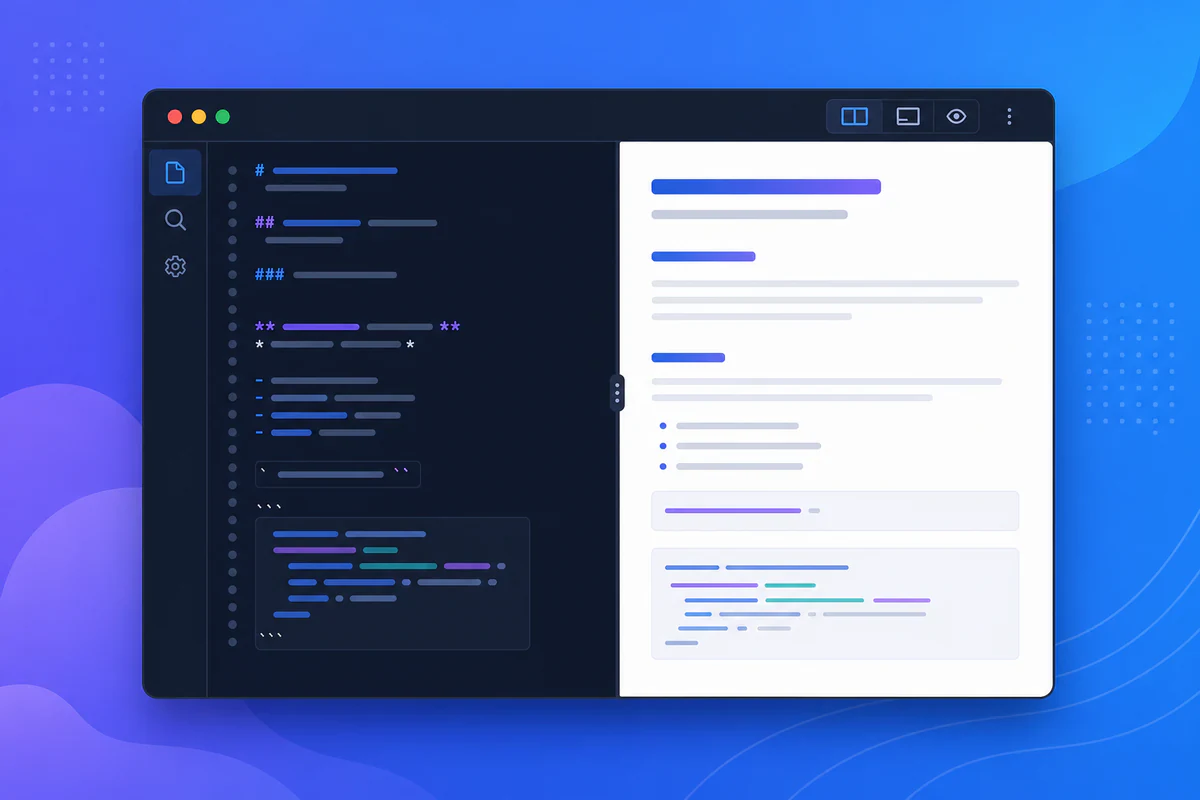
An online Markdown editor runs entirely in your web browser. You write using Markdown syntax — # for headings, * for emphasis, backticks for code — and the editor renders formatted output in a preview pane.
Unlike desktop apps (Typora, Obsidian, VS Code), a browser markdown editor requires no installation, no license key, and no system permissions. Open a URL, start writing.
The best editors go beyond basic preview. They offer file upload, syntax highlighting, diagram rendering, and direct export to PDF, HTML, and TXT — turning a simple writing surface into a complete documentation workstation.
PDFWritter's online Markdown editor combines all of these capabilities in a privacy-first, client-side package.
Why Do People Use Online Markdown Editors?
Developers, writers, and students choose browser-based editors for practical reasons.
- No installation — works on restricted corporate machines, Chromebooks, and shared computers
- Instant access — bookmark a URL and start writing in seconds
- Cross-platform — same experience on macOS, Windows, Linux, iOS, and Android
- Live preview — see formatted output while you type, catching errors immediately
- Built-in export — download PDF, HTML, or TXT without switching to a separate converter
- Privacy — client-side editors like PDFWritter never upload your content to a server
- Collaboration ready — share a screen or copy exported output without file compatibility issues
- Zero cost — no subscription, no trial period, no feature gates on basic writing
When you need to write Markdown quickly without setup overhead, an online editor is the fastest path.
Key Features to Look For
| Feature | PDFWritter Editor | Dillinger | StackEdit | HackMD |
|---|---|---|---|---|
| Live preview | Yes | Yes | Yes | Yes |
| PDF export | Yes | Limited | Yes | No |
| HTML export | Yes | Yes | Yes | Yes |
| TXT export | Yes | No | No | No |
| Mermaid diagrams | Yes | No | No | Yes |
| Client-side processing | Yes | Partial | Partial | No |
| No sign-up required | Yes | Yes | No | No |
| File upload (.md) | Yes | Yes | Yes | Yes |
| Code highlighting | Yes | Yes | Yes | Yes |
| Free | Yes | Yes | Yes | Free tier |
PDFWritter stands out with client-side privacy, Mermaid support, and TXT export — features most browser editors skip.
Step-by-Step Guide: Using the Online Markdown Editor
Step 1: Open the Editor
Go to PDFWritter's online Markdown editor. The page loads a split-pane workspace — source on one side, preview on the other.
You can also reach the editor from the free converter hub.
Step 2: Start Writing or Upload a File
Type Markdown directly in the editor pane, or drag and drop a .md file. The preview updates in real time.
New to Markdown? Start with our beginner syntax guide or work through the hands-on tutorial.
Step 3: Use Live Preview to Validate Formatting
Watch the preview pane as you write. Verify:
- Headings render at correct levels
- Lists and nested lists format properly
- Tables align in columns
- Code blocks show syntax highlighting
- Mermaid diagrams render correctly
For dedicated preview without editing distractions, use the Markdown live preview tool.
Step 4: Add Diagrams and Rich Content
Embed Mermaid diagrams for flowcharts, sequence diagrams, and Gantt charts:
```mermaid
sequenceDiagram
  User->>Editor: Write Markdown
  Editor->>Preview: Render live
  Preview->>PDF: Export document
See our [Mermaid diagrams guide](/blog/render-mermaid-diagrams-markdown) for full syntax reference.

### Step 5: Export to Your Target Format

When your document is ready, export directly:

* **PDF** — professional formatted document via [Markdown to PDF](/markdown-to-pdf)
* **HTML** — semantic web markup via [Markdown to HTML](/markdown-to-html)
* **TXT** — plain text via [Markdown to TXT](/markdown-to-txt)

Each export preserves the structure validated in preview.

---

## Best Use Cases

### Developers

Draft README files, PR descriptions, and RFC documents. Export to PDF for design review meetings. Convert to HTML for internal wikis.

### Technical Writers

Write documentation chapters with live preview feedback. Export polished PDFs for client deliverables. Strip formatting to TXT for email summaries.

### Students

Compose essays and lab reports in Markdown. Preview formatting before converting to PDF for submission. Learn syntax with instant visual feedback.

### Bloggers and Content Creators

Draft blog posts with code examples and diagrams. Export HTML for static site generators. Preview Mermaid charts inline.

### Freelancers

Write proposals and reports on any client's machine without installing software. Export professional PDFs instantly.

### Open-Source Contributors

Edit documentation on the go. Preview changes before submitting pull requests. Export README sections as PDFs for non-GitHub stakeholders.

### Product Managers

Draft specs and user stories in Markdown for version control, then export PDF for executive review meetings. No formatting surprises when the PDF lands in someone's inbox.

---

## Browser Editor vs Desktop IDE: When to Use Each

VS Code, Typora, and Obsidian are excellent daily drivers for developers who live in Markdown. But they require installation, configuration, and sometimes extensions for preview, PDF export, and diagram rendering.

A **browser markdown editor** wins when:

* You are on a machine you do not own
* IT policy blocks new software installs
* You need PDF/HTML export without configuring Pandoc
* You want Mermaid rendering without hunting for plugins
* You are sharing a screen in a meeting and need instant access

Keep your desktop editor for codebase work. Bookmark PDFWritter's [online editor](/editor) for standalone documents, client deliverables, and quick conversions.

---

## Building a Personal Markdown Toolkit

The most productive Markdown users combine tools deliberately:

| Task | Tool |
| --- | --- |
| Daily coding notes | VS Code or Obsidian |
| Client-facing PDFs | [PDFWritter editor](/editor) → [PDF export](/markdown-to-pdf) |
| Blog HTML export | [Markdown to HTML](/markdown-to-html) |
| Quick preview check | [Live preview](/markdown-live-preview) |
| Diagram documentation | [Mermaid guide](/blog/render-mermaid-diagrams-markdown) + editor |

One writing format, multiple outputs. That is the core promise of Markdown — and a good online editor makes it real without terminal commands.

---

## Benefits and Advantages

**Zero friction start.** No download, no account, no configuration. Open the [editor](/editor) and write.

**Complete workflow in one tab.** Write, preview, and export without switching between five different websites.

**Privacy by design.** Client-side processing means your drafts, credentials, and internal docs never transit a remote server.

**Mermaid built in.** Most online editors ignore diagram blocks. PDFWritter renders them natively.

**Multi-format export.** PDF for sharing, HTML for publishing, TXT for plain-text channels — all from the same editor.

**GFM compatible.** Tables, task lists, strikethrough, and autolinks render correctly per the [GitHub Flavored Markdown spec](https://github.github.com/gfm/).

**Mobile accessible.** Write and preview on tablets and phones when desktop is not available.

**Always up to date.** Browser tools update automatically — no version management or dependency conflicts.

---

## Common Problems and Solutions

### Problem: Editor preview differs from VS Code preview

**Solution:** Different renderers handle edge cases differently. PDFWritter follows GFM. If you target PDFWritter export, preview and validate here rather than in another tool.

### Problem: Cannot install Typora or Obsidian on work machine

**Solution:** Browser editors bypass install restrictions entirely. PDFWritter runs in any modern browser without admin rights.

### Problem: Need to share a draft with a non-technical colleague

**Solution:** Export to [PDF](/markdown-to-pdf) from the editor. PDF is universally readable without Markdown knowledge.

### Problem: Mermaid diagram will not render

**Solution:** Use a `mermaid` code fence and verify syntax. Read our [Mermaid guide](/blog/render-mermaid-diagrams-markdown) for examples.

### Problem: Lost work after closing the browser tab

**Solution:** Export or copy your content before closing. Browser-based editors do not persist drafts across sessions unless you save the file locally.

### Problem: Online editors feel less powerful than VS Code

**Solution:** For quick drafts, documentation, and one-off exports, browser editors are faster. Use VS Code for large codebases; use PDFWritter for writing and exporting documents.

---

## Comparison: Online vs Desktop Markdown Editors

| Factor | Online (PDFWritter) | Desktop (VS Code, Typora) |
| --- | --- | --- |
| Installation | None | Required |
| Portability | Any browser, any OS | Installed machine only |
| Live preview | Built-in | Extension or built-in |
| PDF export | One click | Requires extension or print |
| Mermaid support | Native | Extension required |
| Privacy | Client-side, no upload | Local files |
| Best for | Quick docs, export, travel | Daily coding, large projects |
| Offline use | Requires internet | Works offline |

Use both: desktop editors for codebase-adjacent work, online editors for writing, previewing, and exporting standalone documents.

---

## Pro Tips

1. **Bookmark the editor.** [PDFWritter's editor](/editor) is your fastest path from blank page to exported document.
2. **Preview before export.** Thirty seconds of preview review saves re-export cycles. Use [live preview](/markdown-live-preview) for focused validation.
3. **Learn keyboard-friendly syntax.** Markdown is designed for speed — our [tutorial](/blog/markdown-tutorial-beginners) builds muscle memory.
4. **Use Mermaid for architecture docs.** Diagrams communicate structure faster than paragraphs.
5. **Export to PDF for stakeholders.** Non-technical readers prefer PDF over raw Markdown every time.
6. **Use TXT export for AI prompts.** Strip formatting before pasting docs into LLM chat windows.
7. **Explore the full toolkit.** The [free converter hub](/free-markdown-converter) connects the editor to every export format.

---

## Common Mistakes to Avoid

* **Choosing an editor that uploads content to servers.** For confidential docs, verify client-side processing. PDFWritter never uploads your files.
* **Skipping preview before PDF export.** Formatting bugs caught in preview are free to fix; in a PDF they require re-export.
* **Using an editor without export options.** Writing and converting in separate tools wastes time. PDFWritter handles both.
* **Ignoring Mermaid syntax.** Broken diagram blocks look fine in source but fail in preview and export.
* **Not saving work locally.** Browser tabs do not persist forever — download or copy content when done.
* **Over-installing desktop apps for simple tasks.** A browser editor handles 90% of Markdown writing needs.
* **Forgetting about plain-text export.** The [TXT converter](/markdown-to-txt) is useful for email and AI workflows, not just PDF and HTML.

---

## Keyboard-First Writing in the Browser

Markdown is designed for keyboard-driven writing. In the browser editor, these patterns speed up your workflow:

* `**text**` for bold, `*text*` for italic — no toolbar needed
* `- ` at line start for bullet lists
* `1. ` for numbered lists
* `[label](url)` for links
* Triple backticks for code blocks

The faster you type syntax from memory, the more value you get from live preview. Our [Markdown tutorial](/blog/markdown-tutorial-beginners) builds this muscle through short exercises.

---

## Security Considerations for Browser Editors

When evaluating any online editor, ask one question: does my content leave the browser?

Cloud-synced editors upload drafts to remote servers by design. That is fine for public blog posts but risky for internal specs, credentials in code examples, and pre-release product documentation.

PDFWritter's [online editor](/editor) processes everything client-side. Your drafts exist only in your browser session until you download or copy them. For confidential content, that architecture is non-negotiable.

Combine privacy, preview, and multi-format export in one tab — that is the modern Markdown writing experience. Open the [free online editor](/editor) and start your next document now. Write in Markdown, preview live, and export to PDF, HTML, or TXT — all without leaving your browser. Try [PDFWritter](/editor) free today.

---

## Frequently Asked Questions

### Is the PDFWritter online editor free?

Yes. The [online Markdown editor](/editor) is completely free with no usage limits and no account required.

### Does the editor upload my documents?

No. All processing happens in your browser. Your content never leaves your device.

### Can I export to PDF, HTML, and TXT from the editor?

Yes. The editor integrates with PDFWritter's [PDF](/markdown-to-pdf), [HTML](/markdown-to-html), and [TXT](/markdown-to-txt) converters for one-click export.

### Does the editor support Mermaid diagrams?

Yes. Mermaid flowcharts, sequence diagrams, and other diagram types render inline in the preview pane.

### How does this compare to VS Code for Markdown editing?

VS Code excels at editing files within a codebase. PDFWritter excels at standalone document writing with built-in preview and multi-format export — no extensions required.

### Can I upload existing .md files?

Yes. Drag and drop or paste existing Markdown files into the editor.

### Does the editor work on mobile?

Yes. Modern mobile browsers support the editor, though the experience is most comfortable on tablet or desktop screens.

### What Markdown flavor is supported?

GitHub Flavored Markdown — including tables, task lists, strikethrough, autolinks, and fenced code blocks.

### Is sign-up required?

No. Open [pdfwritter.com/editor](https://www.pdfwritter.com/editor) and start writing immediately.

### Can I use the editor offline?

The editor requires an initial page load over the internet. After loading, basic editing and preview work without continuous connectivity depending on browser caching.

---

## Final Conclusion

The best **online markdown editor** combines fast writing, live preview, and multi-format export in a single browser tab. You should not need three different apps to draft, validate, and share a Markdown document.

PDFWritter's [free online editor](/editor) delivers live preview, Mermaid diagram support, and one-click export to PDF, HTML, and TXT — all processed client-side for complete privacy.

Open the [online Markdown editor](/editor) today and write your next document without installing a thing.

---

## Related Tools

- [Online Markdown editor](/editor) — write, preview, and export
- [Markdown live preview](/markdown-live-preview) — focused preview experience
- [Markdown to PDF](/markdown-to-pdf) — professional document export
- [Markdown to HTML](/markdown-to-html) — web publishing output
- [Markdown to TXT](/markdown-to-txt) — plain-text export
- [Free markdown converter hub](/free-markdown-converter) — all tools together
- [Best Markdown editors comparison](/blog/best-markdown-editors) — desktop and online options