You typed ## Heading but it renders as plain text. A table row is missing a pipe character. Your Mermaid flowchart shows a syntax error instead of a diagram. These mistakes are invisible in raw Markdown — until someone opens the rendered version.
Markdown live preview solves this by showing your formatted output in real time as you type. What you see is what you get, without switching apps or running build commands.
This guide covers how live preview works, why developers rely on it, and how to use PDFWritter's Markdown live preview tool for error-free writing and exporting.
Quick Answer
Markdown live preview displays a real-time rendered view of your Markdown alongside the source text, updating instantly as you edit. PDFWritter's live preview tool runs in your browser with no installation and supports tables, code blocks, and Mermaid diagrams.
What is Markdown Live Preview?
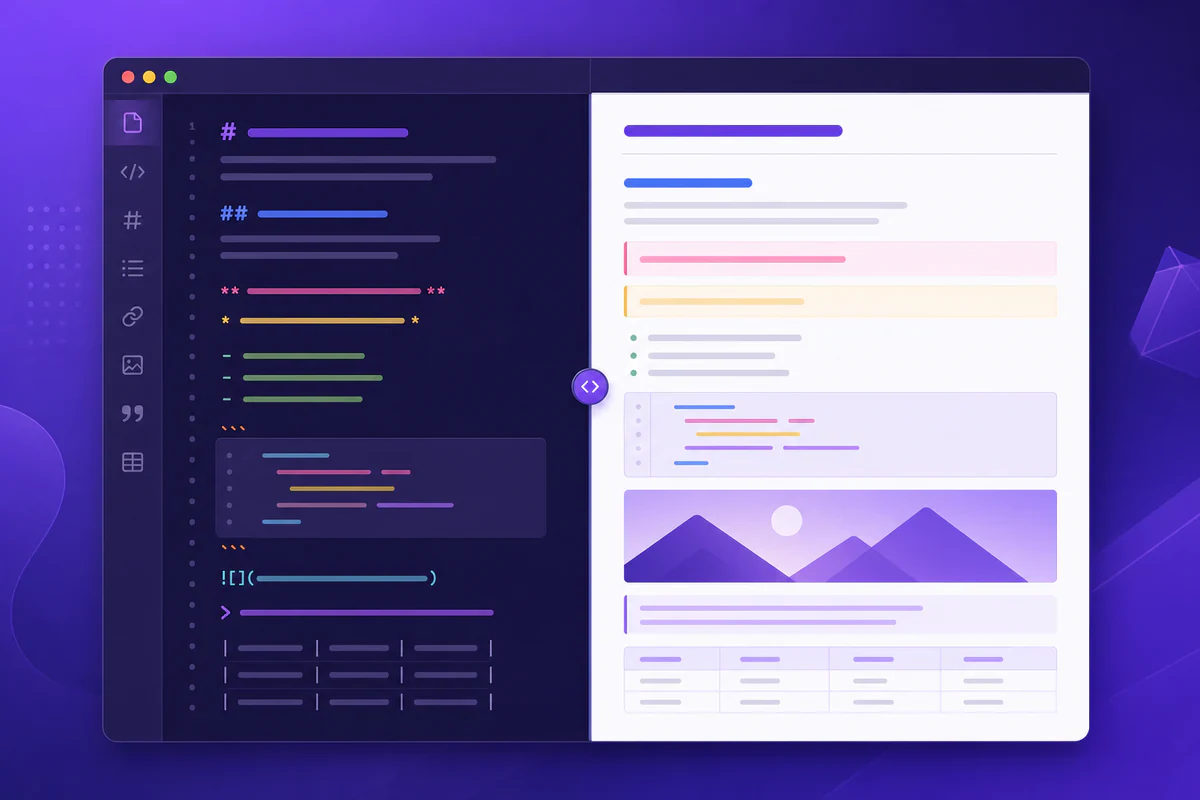
Live preview is a split-pane editing experience. You write Markdown syntax on one side. The other side renders it into formatted output — headings, bold text, lists, tables, code blocks, and diagrams.
Unlike static preview (which requires a manual refresh), real-time markdown preview updates on every keystroke. This immediate feedback loop catches formatting errors before they reach your audience.
Most professional Markdown editors — VS Code, Typora, Obsidian — include preview modes. PDFWritter brings the same capability to your browser without installing anything.
The Markdown live preview tool at PDFWritter is purpose-built for quick edits, documentation review, and pre-export validation.
Why Do People Use Markdown Live Preview?
Writing raw Markdown without visual feedback is like coding without syntax highlighting. You can do it, but you will miss errors.
- Catch formatting errors instantly — broken headings, missing list markers, and unclosed code fences show up immediately
- Validate tables visually — column alignment issues are obvious in rendered view, invisible in source
- Preview Mermaid diagrams — flowcharts and sequence diagrams render live instead of showing raw code blocks
- Review before export — verify layout before converting to PDF or HTML
- Learn Markdown syntax — beginners see how syntax maps to output in real time
- Collaborate faster — share a preview link or screenshot instead of explaining raw syntax
- Work on any device — browser-based preview works on laptops, tablets, and phones
- Skip build steps — no need to run Hugo, Jekyll, or Next.js just to see rendered output
For anyone who writes Markdown regularly, live preview is not optional — it is essential.
Key Features of a Good Live Preview Tool
| Feature | Why It Matters |
|---|---|
| Real-time updates | Errors appear on the keystroke that causes them, not after a manual refresh |
| Split-pane layout | Source and preview visible simultaneously — no tab switching |
| GitHub Flavored Markdown | Tables, task lists, strikethrough, and autolinks render correctly |
| Code syntax highlighting | Fenced code blocks display with language-appropriate colors |
| Mermaid diagram rendering | Flowcharts, sequence diagrams, and Gantt charts render inline |
| Mobile responsive | Preview works on phones and tablets for on-the-go review |
| Client-side processing | Content stays on your device — no server upload |
| Export integration | Jump from preview to PDF, HTML, or TXT export seamlessly |
| No sign-up required | Open the tool and start previewing immediately |
PDFWritter's live preview includes every feature on this list.
Step-by-Step Guide: Using Markdown Live Preview
Step 1: Open the Live Preview Tool
Navigate to PDFWritter's Markdown live preview. The page loads a split-pane editor instantly — no account, no download.
You can also access preview from the free converter hub or the online editor.
Step 2: Paste or Write Your Markdown
Drop a .md file into the editor pane, or start typing from scratch. The preview pane updates with every change.
Try basic syntax first if you are learning:
[object Promise][object Promise]