You need to draft a README, polish a blog post, or write documentation — but installing another desktop app is not worth the hassle. Maybe you are on a borrowed laptop, a Chromebook, or a machine where IT locks down installs. You just want a reliable md editor to open a tab, write Markdown, see it rendered, and export.
That is exactly what an online markdown editor delivers — one of the best markdown apps for quick writing without setup. The best ones pair a clean writing surface with live preview and one-click export to PDF, HTML, or plain text, making them a practical choice for any markdown writer who needs speed over installation.
This guide compares the top browser-based editors, explains what features matter, and shows how PDFWritter's online editor fits into a modern writing workflow.
Quick Answer
An online markdown editor is a browser-based writing tool that lets you compose Markdown with real-time preview and export to multiple formats. If you searched for the best editor for markdown that requires no install, PDFWritter's free online editor runs client-side, supports Mermaid diagrams, and exports to PDF, HTML, and TXT without sign-up.
What is an Online Markdown Editor?
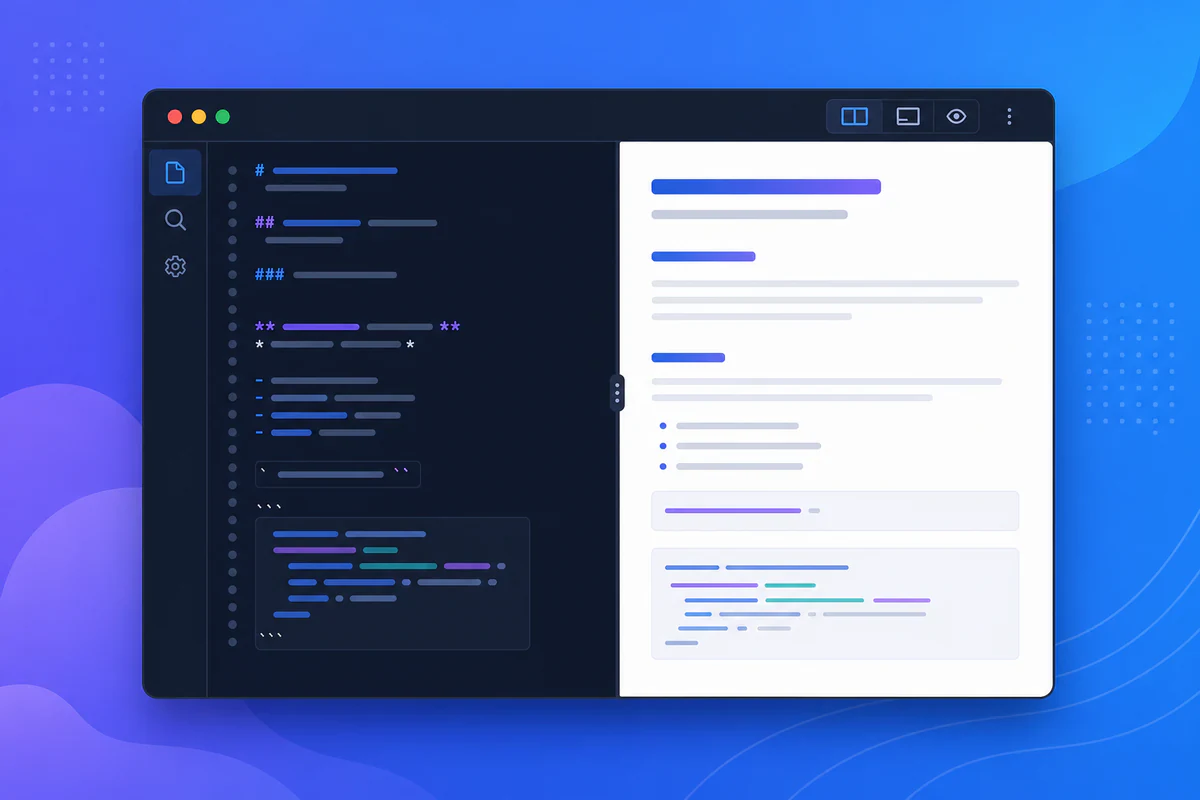
An online Markdown editor runs entirely in your web browser. You write using Markdown syntax — # for headings, * for emphasis, backticks for code — and the editor renders formatted output in a preview pane.
Unlike desktop apps (Typora, Obsidian, VS Code), a browser markdown editor requires no installation, no license key, and no system permissions. Open a URL, start writing.
The best editors go beyond basic preview. They offer file upload, syntax highlighting, diagram rendering, and direct export to PDF, HTML, and TXT — turning a simple writing surface into a complete documentation workstation.
PDFWritter's online Markdown editor combines all of these capabilities in a privacy-first, client-side package.
Why Do People Use Online Markdown Editors?
Developers, writers, and students choose browser-based editors for practical reasons.
- No installation — works on restricted corporate machines, Chromebooks, and shared computers
- Instant access — bookmark a URL and start writing in seconds
- Cross-platform — same experience on macOS, Windows, Linux, iOS, and Android
- Live preview — see formatted output while you type, catching errors immediately
- Built-in export — download PDF, HTML, or TXT without switching to a separate converter
- Privacy — client-side editors like PDFWritter never upload your content to a server
- Collaboration ready — share a screen or copy exported output without file compatibility issues
- Zero cost — no subscription, no trial period, no feature gates on basic writing
When you need to write Markdown quickly without setup overhead, an online editor is the fastest path.
Key Features to Look For
| Feature | PDFWritter Editor | Dillinger | StackEdit | HackMD |
|---|---|---|---|---|
| Live preview | Yes | Yes | Yes | Yes |
| PDF export | Yes | Limited | Yes | No |
| HTML export | Yes | Yes | Yes | Yes |
| TXT export | Yes | No | No | No |
| Mermaid diagrams | Yes | No | No | Yes |
| Client-side processing | Yes | Partial | Partial | No |
| No sign-up required | Yes | Yes | No | No |
| File upload (.md) | Yes | Yes | Yes | Yes |
| Code highlighting | Yes | Yes | Yes | Yes |
| Free | Yes | Yes | Yes | Free tier |
PDFWritter stands out with client-side privacy, Mermaid support, and TXT export — features most browser editors skip.
Step-by-Step Guide: Using the Online Markdown Editor
Step 1: Open the Editor
Go to PDFWritter's online Markdown editor. The page loads a split-pane workspace — source on one side, preview on the other.
You can also reach the editor from the free converter hub.
Step 2: Start Writing or Upload a File
Type Markdown directly in the editor pane, or drag and drop a .md file. The preview updates in real time.
New to Markdown? Start with our beginner syntax guide or work through the hands-on tutorial.
Step 3: Use Live Preview to Validate Formatting
Watch the preview pane as you write. Verify:
- Headings render at correct levels
- Lists and nested lists format properly
- Tables align in columns
- Code blocks show syntax highlighting
- Mermaid diagrams render correctly
For dedicated preview without editing distractions, use the Markdown live preview tool.
Step 4: Add Diagrams and Rich Content
Embed Mermaid diagrams for flowcharts, sequence diagrams, and Gantt charts:
[object Promise][object Promise]