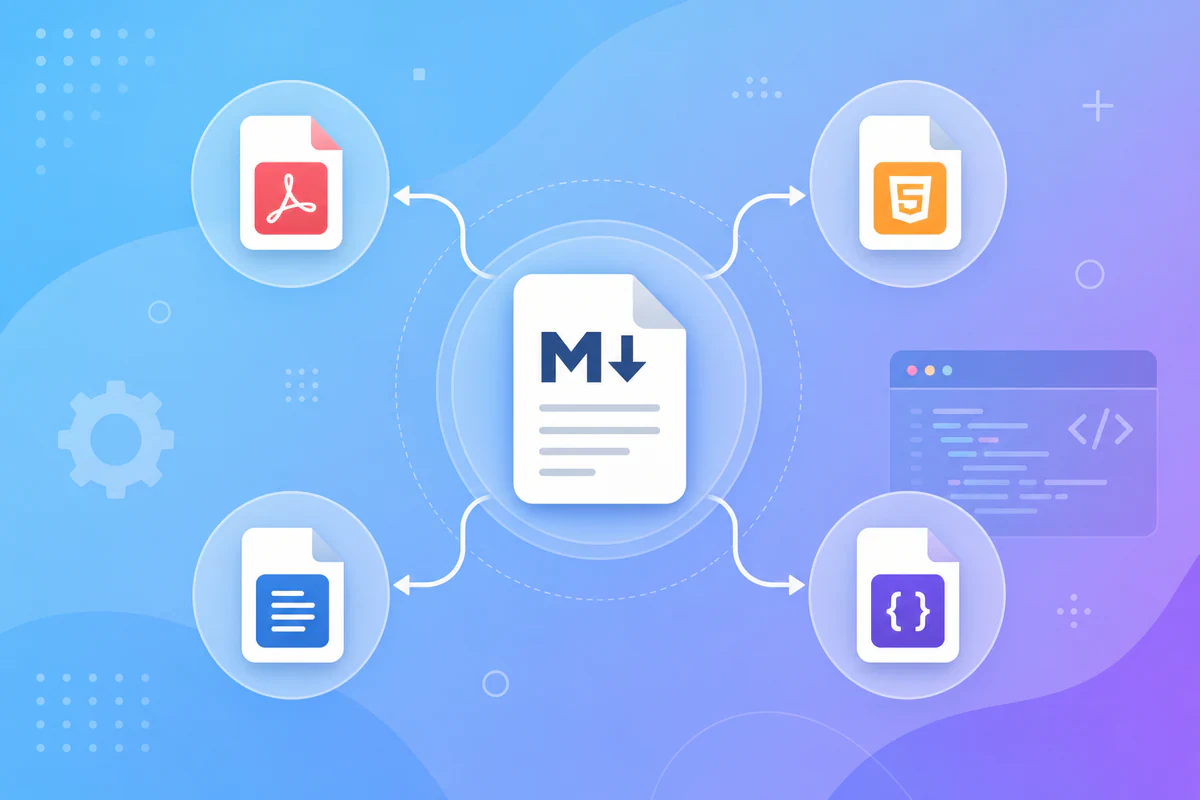
You wrote a README, a technical spec, or a set of meeting notes in Markdown. Now you need it as a PDF for a client, HTML for a CMS, or plain text for an email thread. Jumping between five different apps to handle each format is a waste of time.
A free markdown converter brings every export path into one place. No installs, no accounts, no upload queues — just paste your Markdown and pick the output you need.
This guide covers what a modern Markdown conversion toolkit should include, how each format fits your workflow, and how to use PDFWritter's free converter hub to handle the entire pipeline in your browser.
Quick Answer
A free markdown converter is a browser-based tool that transforms Markdown source files into PDF, HTML, TXT, or live preview output without installing software. PDFWritter runs entirely client-side, so your documents never leave your device.
What is a Free Markdown Converter?
A Markdown converter reads plain-text files written in Markdown syntax — headings, lists, bold text, code blocks, links — and renders them into another format.
Traditional converters require command-line tools like Pandoc or desktop apps like Typora. A free online markdown converter does the same job inside your browser tab.
PDFWritter's toolkit includes:
- Markdown to PDF — professional documents for sharing and printing
- Markdown to HTML — semantic web-ready markup
- Markdown to TXT — clean plain text without formatting symbols
- Markdown live preview — real-time side-by-side rendering
- Online Markdown editor — write, preview, and export in one workspace
Everything processes locally in your browser. Nothing uploads to a server.
Why Do People Use a Free Markdown Converter?
Markdown is the default writing format for developers, technical writers, and open-source teams. But Markdown files alone rarely satisfy every audience.
Here is why teams reach for a converter:
- Share with non-technical stakeholders — PDF is universally readable; Markdown is not
- Publish on the web — HTML output drops into any CMS or static site generator
- Strip formatting for plain-text channels — TXT export removes
#,*, and link syntax for email or chat - Preview before publishing — live preview catches broken tables, missing headings, and diagram errors
- Skip installation overhead — browser tools work on any OS without Homebrew, npm, or admin rights
- Protect sensitive content — client-side converters keep internal docs off third-party servers
- Support diagram-heavy docs — Mermaid flowcharts and sequence diagrams render inline, then export to PDF
If you regularly move between writing and publishing, a unified toolkit saves hours every week.
Key Features of a Modern Markdown Converter
Not every online converter is worth your time. Here is what separates a reliable toolkit from a bare-minimum paste box.
| Feature | Why It Matters |
|---|---|
| Client-side processing | Your IP, credentials, and internal docs stay on your machine |
| Live preview | Catch formatting errors before export |
| PDF export | Professional sharing, printing, and archival |
| HTML export | Clean semantic markup for websites and CMS platforms |
| TXT export | Plain text for email, Slack, LLM prompts, and accessibility |
| Mermaid diagram support | Flowcharts and sequence diagrams render without screenshots |
| Code block highlighting | Developer documentation stays readable in every format |
| Table rendering | Complex data tables survive conversion intact |
| No sign-up required | Start converting immediately without creating an account |
| Multi-language UI | Teams across regions can use the same tool comfortably |
PDFWritter checks every box on this list. Compare that to standalone CLI tools that require separate commands for each output format.
Step-by-Step Guide: Using the Free Markdown Converter Hub
Follow these steps to convert any Markdown file through the free markdown converter hub.
Step 1: Open the Converter Hub
Navigate to PDFWritter's free converter page. You will see cards for each tool — PDF, HTML, TXT, live preview, and the full editor.
Pick the output format you need, or start in the online editor if you are writing from scratch.
Step 2: Paste or Upload Your Markdown
Drop a .md file into the editor pane, or paste Markdown text directly. The tool accepts GitHub Flavored Markdown, including tables, task lists, fenced code blocks, and Mermaid diagram blocks.
If you are new to Markdown syntax, read our beginner guide first.
Step 3: Preview the Rendered Output
Use the live preview tool or the built-in preview pane to verify headings, lists, code blocks, and diagrams. Fix any broken syntax before exporting — it is faster than re-converting later.
For diagram-heavy documents, see our guide on rendering Mermaid diagrams in Markdown.
Step 4: Choose Your Export Format
- PDF — click through to the Markdown to PDF converter and download a formatted document
- HTML — use the Markdown to HTML tool for semantic web markup
- TXT — open the Markdown to TXT converter to strip formatting symbols
Each converter preserves structure appropriate to the target format.
Step 5: Download or Copy the Result
Click Download to save the file locally, or Copy to paste HTML or text into another application. The entire process takes seconds — no email confirmation, no watermarks, no usage caps.
Best Use Cases
Different teams lean on Markdown converters for different reasons.
Developers
Export README files and API documentation to PDF for code review packets. Convert internal runbooks to HTML for a team wiki. Strip Markdown from changelogs before posting to Slack.
Technical Writers
Draft in Markdown for version control, then export polished PDFs for client deliverables. Preview complex tables and Mermaid diagrams before publishing.
Students
Convert lecture notes and assignment drafts to PDF for submission. Use plain-text export to paste summaries into study apps.
Bloggers and Content Creators
Write posts in Markdown, preview formatting live, then export HTML for a static site or PDF for lead magnets.
Open-Source Maintainers
Turn repository documentation into printable contributor guides. Share formatted PDFs with sponsors who do not use GitHub daily.
Enterprise Teams
Process sensitive internal documentation client-side — no third-party upload means compliance-friendly workflows for legal, finance, and HR teams.
Freelancers and Consultants
Deliver client reports without asking them to install Pandoc or open raw .md files. Write in Markdown for speed, export to PDF for polish, and send HTML snippets for website updates — all from one browser session.
How Client-Side Conversion Works
Understanding the architecture helps you trust the tool with sensitive content.
When you paste Markdown into PDFWritter, a JavaScript parser running locally in your browser tokenizes the syntax — headings, lists, links, code fences — and builds a document model. That model renders in the preview pane and serializes to PDF, HTML, or TXT on export.
No network request carries your document body. The server only delivers the application code, the same way a desktop app installs once and runs offline. This is fundamentally different from cloud converters that upload your file, process it on a remote machine, and return a download link.
For teams under GDPR, HIPAA-adjacent policies, or internal security reviews, client-side processing eliminates an entire class of data-handling concerns.
Benefits and Advantages
A browser-based free markdown converter offers clear advantages over fragmented workflows.
Speed. One hub replaces five separate tools. Paste once, export anywhere.
Privacy. Client-side processing means your Markdown never transits a remote server. For NDAs, security reviews, and internal policies, that matters.
Zero cost. PDFWritter is free with no usage limits, no premium tier, and no sign-up wall.
Cross-platform. Works on macOS, Windows, Linux, ChromeOS, iOS, and Android — anything with a modern browser.
Diagram support. Most converters ignore Mermaid blocks. PDFWritter renders flowcharts, sequence diagrams, and Gantt charts inline.
Consistent output. Headings, tables, code blocks, and nested lists convert reliably across PDF, HTML, and TXT formats.
No maintenance. Online tools update automatically. You never chase Pandoc version conflicts or Node.js dependency drift.
Common Problems and Solutions
Problem: Formatting breaks during PDF export
Solution: Preview your document in the live preview tool before exporting. Broken table syntax or unclosed code fences are the usual culprits. Fix them in the editor, then re-export.
Problem: Mermaid diagrams show as raw code
Solution: Wrap diagram syntax in a fenced code block with the mermaid language tag. PDFWritter parses and renders Mermaid natively. See our Mermaid diagram guide for syntax examples.
Problem: Colleagues cannot open .md files
Solution: Convert to PDF via the Markdown to PDF tool. PDF opens on every device without special software.
Problem: Need HTML for a CMS but output looks unstyled
Solution: PDFWritter exports semantic HTML — <h1>, <ul>, <pre><code>. Pair it with your site's CSS or a typography plugin. Read our expanded Markdown to HTML guide for styling tips.
Problem: Worried about uploading confidential docs
Solution: PDFWritter processes everything in your browser. No file upload, no server storage, no account required. Your content stays on your device.
Problem: CLI tools like Pandoc are too complex for quick tasks
Solution: Use the online hub for one-off conversions. Reserve Pandoc for automated build pipelines. Both approaches complement each other.
Comparison: PDFWritter vs Other Markdown Converters
| Feature | PDFWritter | Pandoc (CLI) | Dillinger | StackEdit |
|---|---|---|---|---|
| Browser-based | Yes | No | Yes | Yes |
| Client-side processing | Yes | Yes (local) | Partial | Partial |
| PDF export | Yes | Yes | Limited | Yes |
| HTML export | Yes | Yes | Yes | Yes |
| TXT export | Yes | Yes | No | No |
| Mermaid diagrams | Yes | Plugin required | No | No |
| No sign-up | Yes | N/A | Yes | Requires account |
| Live preview | Yes | No | Yes | Yes |
| Batch conversion | Manual | Yes (scriptable) | No | No |
| Learning curve | Low | High | Low | Medium |
For quick, private, diagram-aware conversions, PDFWritter wins on convenience. For automated CI/CD pipelines processing hundreds of files, Pandoc remains the power-user choice.
Pro Tips
- Start in the editor, export from the hub. Write and preview in the online editor, then jump to the specific converter for your target format.
- Use PDF for final deliverables. When sharing with clients or executives, Markdown to PDF produces the most professional result.
- Use TXT for LLM prompts. Strip formatting before pasting documentation into ChatGPT or Claude — cleaner input produces better summaries.
- Preview diagrams before PDF export. Mermaid syntax errors are easier to spot in live preview than in a finished PDF.
- Bookmark the hub page. Free markdown converter gives you one-click access to every tool.
- Learn Markdown once, export everywhere. Invest time in our Markdown tutorial — the syntax works across every converter in the toolkit.
- Cross-link your docs. When writing internal wikis, export sections to HTML and embed them in your CMS for searchable, structured content.
Common Mistakes to Avoid
- Skipping the preview step. Always check rendered output before downloading — especially for tables and nested lists.
- Using the wrong export format. PDF for sharing, HTML for web publishing, TXT for plain-text channels. Pick deliberately.
- Uploading sensitive docs to unknown converters. Verify the tool processes client-side. PDFWritter never sends your files to a server.
- Ignoring Mermaid syntax rules. A missing arrow or wrong diagram type breaks the entire block. Test in preview first.
- Expecting styled HTML out of the box. Semantic HTML is correct behavior — add your own CSS for visual design.
- Relying on manual copy-paste for plain text. The TXT converter strips formatting more reliably than selecting rendered text.
- Installing desktop software for one-off tasks. Browser tools handle 90% of daily conversion needs without bloating your machine.
Frequently Asked Questions
Is the PDFWritter markdown converter really free?
Yes. Every tool in the hub — PDF, HTML, TXT, live preview, and the editor — is free with no usage limits and no account required.
Does the converter upload my files to a server?
No. PDFWritter runs entirely in your browser. Your Markdown content is processed client-side and never leaves your device.
Can I convert Markdown to PDF, HTML, and TXT from the same document?
Yes. Paste your Markdown once in the editor, then use whichever converter you need. The source content stays the same — only the output format changes.
Does PDFWritter support Mermaid diagrams?
Yes. Mermaid flowcharts, sequence diagrams, class diagrams, and Gantt charts render inline in the preview and export correctly to PDF.
Can I use the converter on mobile devices?
Yes. All tools work in modern mobile browsers on iOS and Android, though the editing experience is most comfortable on desktop.
How does PDFWritter compare to Pandoc?
Pandoc is a powerful CLI tool ideal for automated pipelines and batch processing. PDFWritter is faster for one-off conversions, requires no installation, and adds live preview plus Mermaid support in the browser.
Is there a file size limit?
PDFWritter handles large documentation files including lengthy README files, API references, and multi-chapter guides. Processing speed depends on your device's browser performance.
Can I convert Markdown files with code blocks and syntax highlighting?
Yes. Fenced code blocks with language tags render with syntax highlighting in preview and survive export to PDF and HTML formats.
Do I need to create an account?
No. Open any tool on pdfwritter.com and start converting immediately.
What Markdown flavor does PDFWritter support?
PDFWritter supports GitHub Flavored Markdown, including tables, task lists, strikethrough, autolinks, and fenced code blocks as defined in the GFM specification.
Can I convert Markdown written in Obsidian or Notion?
Yes. Content exported from Obsidian (standard .md files) and most Notion Markdown exports convert correctly. Complex Notion blocks may need manual cleanup before conversion.
Does the toolkit work without an internet connection after loading?
Once the page loads in your browser, editing and preview work locally. You need an internet connection for the initial page load only.
Final Conclusion
A free markdown converter should not force you to choose between speed, privacy, and output quality. The right toolkit handles PDF, HTML, TXT, and live preview from a single hub — without installs, accounts, or server uploads.
PDFWritter delivers exactly that. Whether you are a developer exporting a README, a student submitting notes, or a technical writer delivering client documentation, the free markdown converter hub covers every format in seconds.
Try PDFWritter today and simplify your entire Markdown workflow.
Related Tools
- Free Markdown converter hub — all tools in one place
- Markdown to PDF — professional document export
- Markdown to HTML — semantic web markup
- Markdown to TXT — plain-text export
- Markdown live preview — real-time rendering
- Online Markdown editor — write, preview, and export
- Complete PDF conversion guide — deep dive on PDF export